Features

Everything it does.

From a desktop at home to a rack of servers: see the screen, take control, keep it running, and add a team. Each feature shows itself in a short demo.

See the screen

Any machine, from power-on to desktop, in a browser tab.

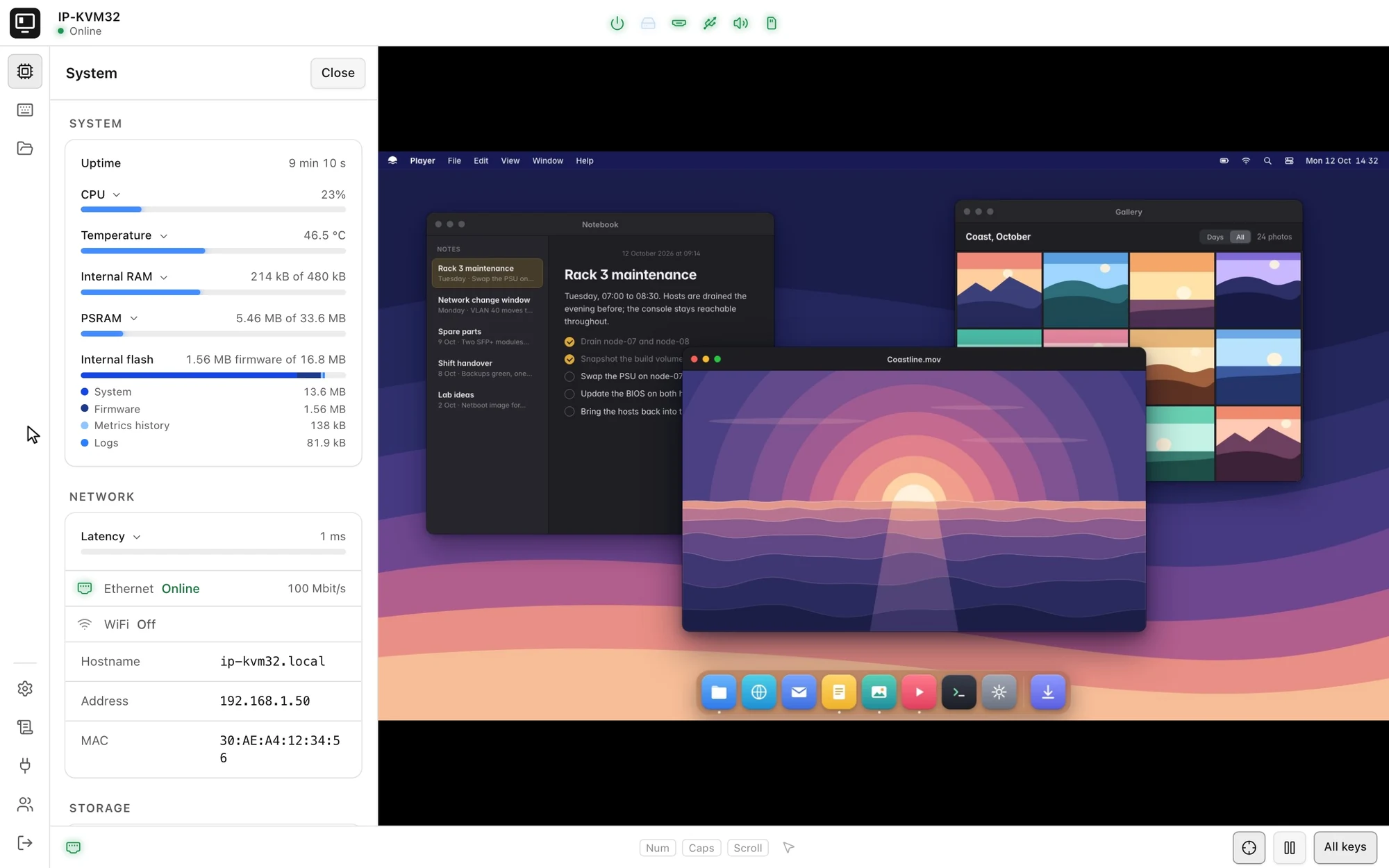
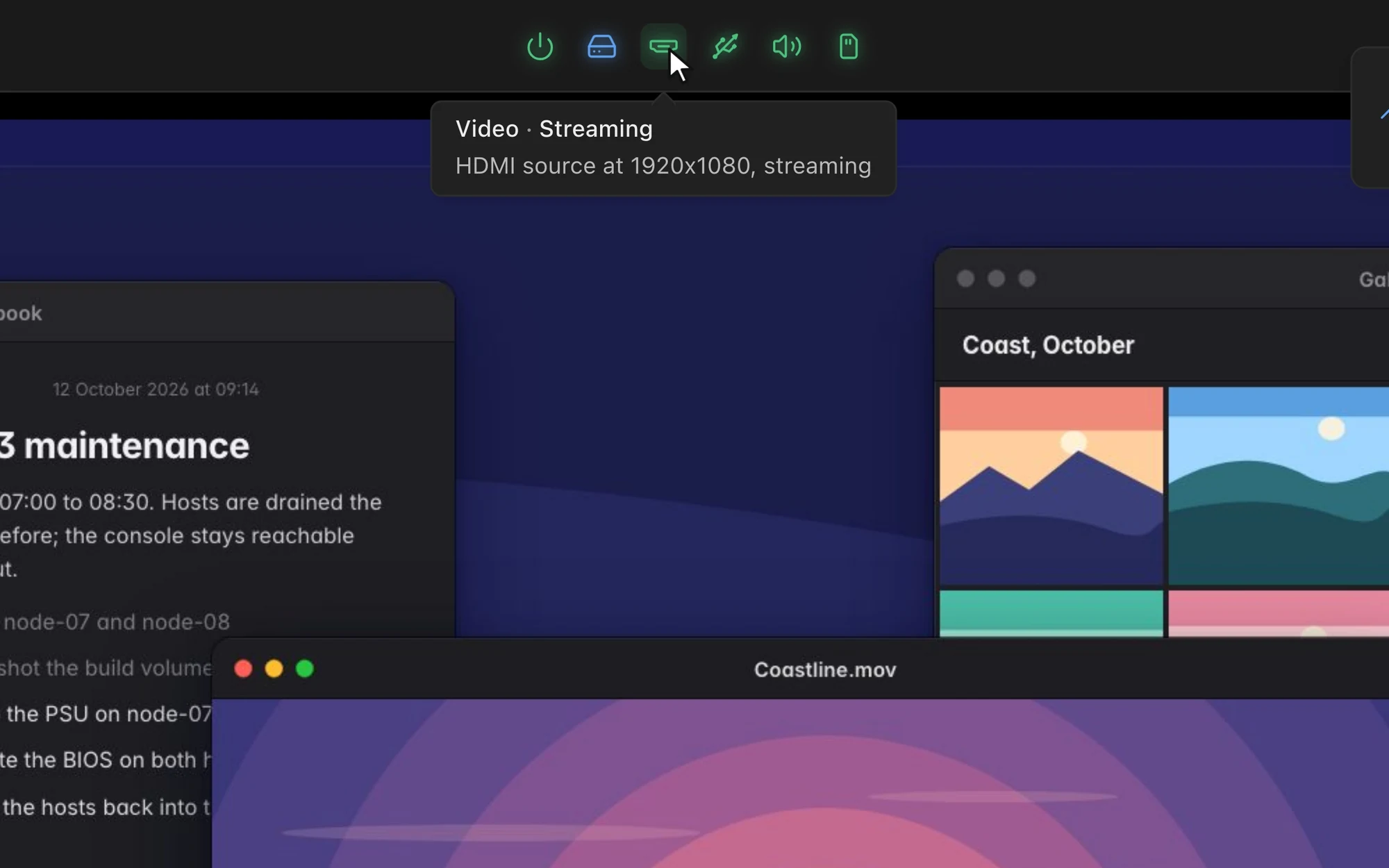
See the machine's screen in a browser tab and use its keyboard and mouse as if you were there. Status lights across the top show what is working.

  • Lights for power, disk, video, USB, sound and file transfer, and for who else is on the device
  • The picture fills your window, or the screen with the F key, and works as a trackpad on a phone
  • Panels for keys, files, the device's health and its log
  • Sign-in is always required, over HTTPS

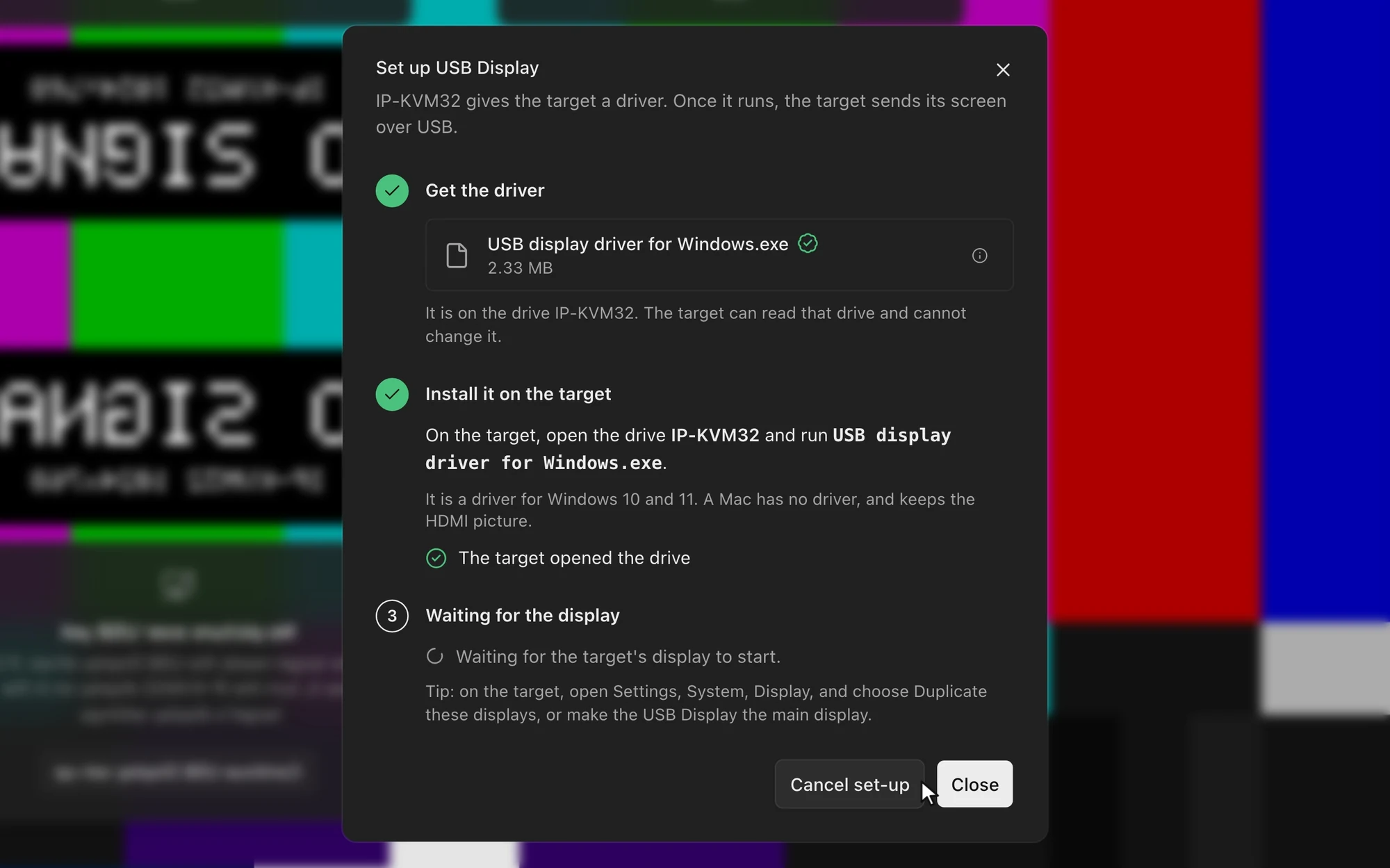
The machine sees KVM32 as a second monitor and sends its screen over the same USB cable that carries the keyboard and mouse. There is no capture hardware to buy or wire.

  • Up to 1920x1080, with nine resolutions to choose from
  • The machine's own JPEG frames reach your browser unchanged
  • Windows needs a small display driver, which the console helps you install; Linux has an open one
  • It shows nothing before the system loads, and macOS has no driver: use HDMI capture there
  • It is the default picture source

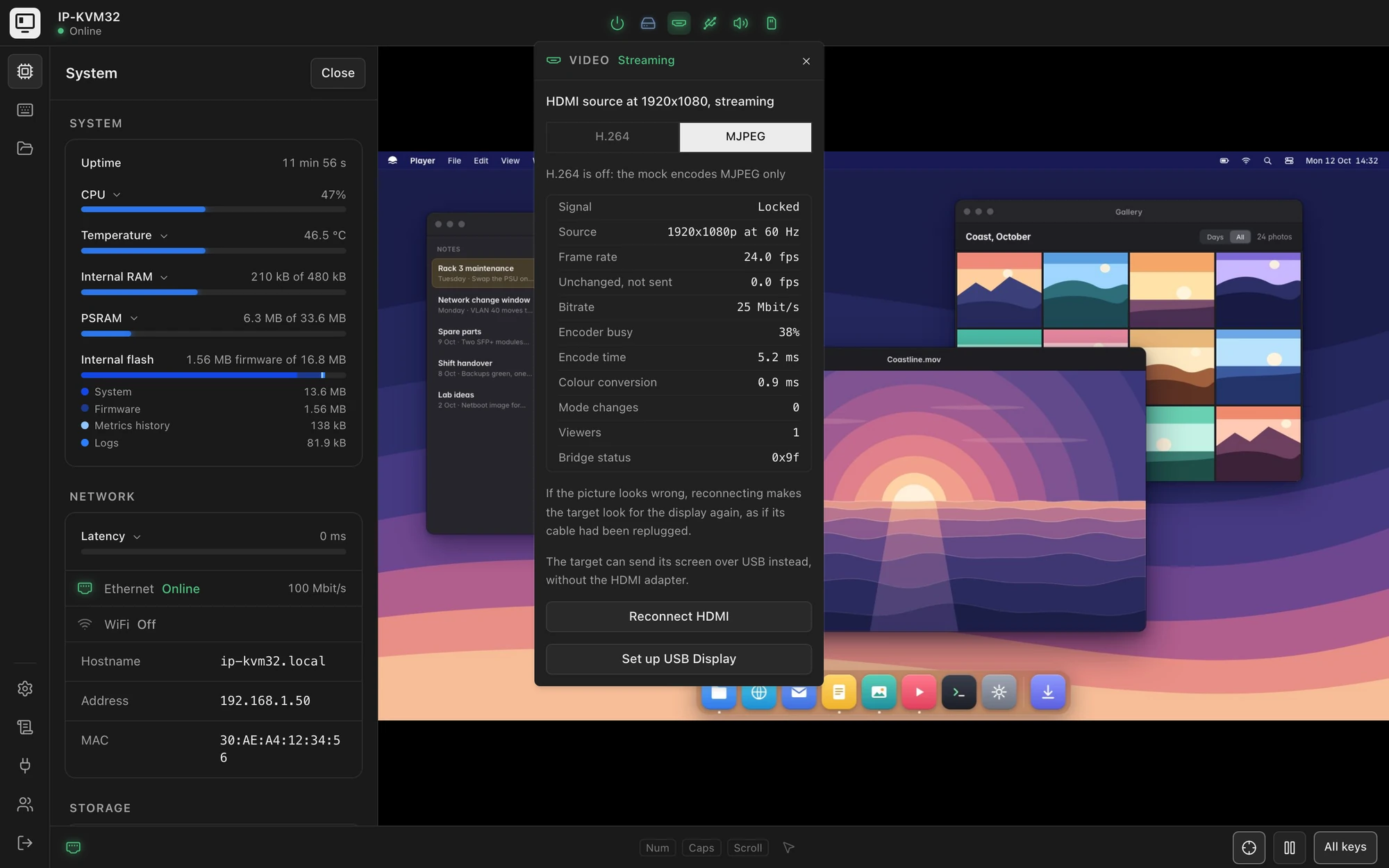
Capture the machine's HDMI output instead, for start-up and BIOS screens before the system loads, for a Mac, or for VNC. A small adapter turns HDMI into a signal the board reads.

  • Up to 1920x1080 at 30 Hz, as MJPEG, or as H.264 where the chip allows it
  • An HDMI-to-CSI adapter with a TC358743 chip on the board's camera connector
  • A VGA source, such as a rack server or an older KVM switch, works through a VGA-to-HDMI converter
  • Choose it under Settings, Video, Picture source

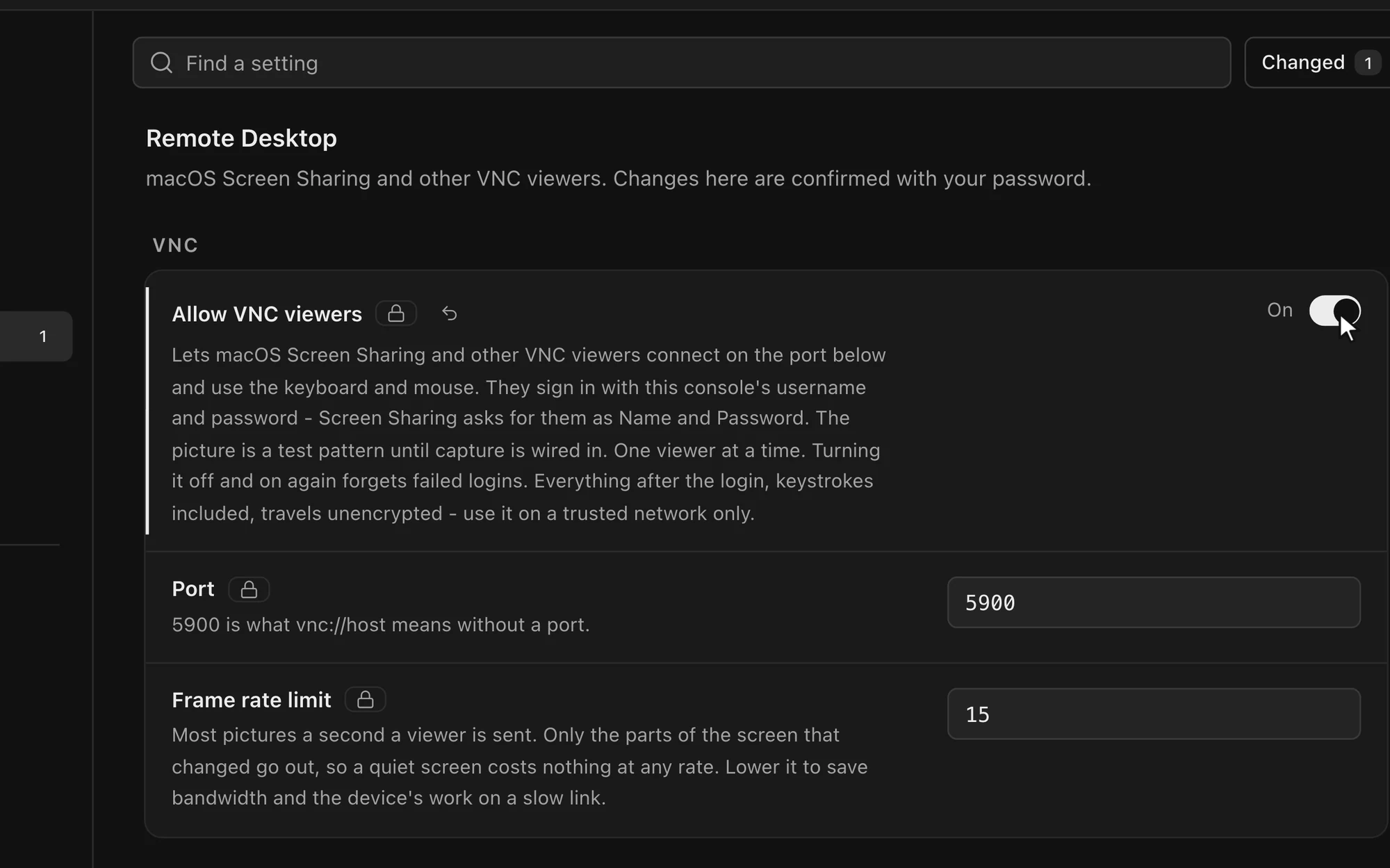
Open the machine in macOS Screen Sharing or any VNC viewer, beside the browser console. Use the tools you already have.

  • macOS Screen Sharing connects as it is, with the console's name and password
  • Other VNC viewers work too, with their own keyboard and mouse
  • One viewer at a time, and it shows the HDMI capture, so choose that picture source
  • Off until you switch it on under Settings

The console follows your system, dark or light, and changes with it while the page is open. A dark system never flashes white.

  • Follows the operating system's setting
  • Changes live, with no reload
  • No flash of white on a dark system
  • Both keep the same status colours: green good, blue active, orange attention, red fault

Control the computer

Keys, mouse, drives, sound and power. Everything you would do in front of it.

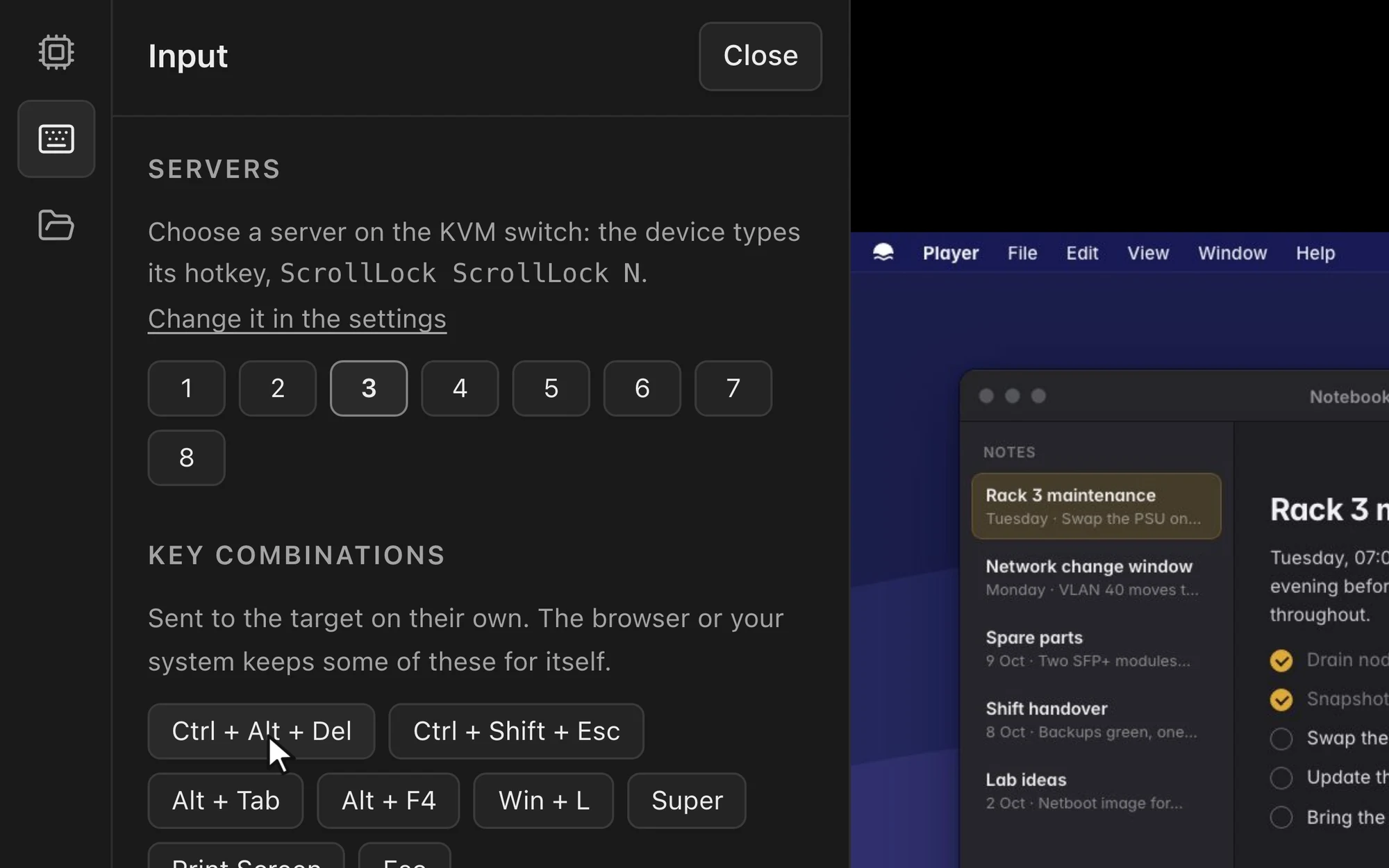
Type and click as if you were at the machine. Keys your browser would keep for itself, such as Ctrl+Alt+Del, have their own buttons.

  • A boot keyboard, an absolute and a relative mouse, and media keys
  • Works in the BIOS and at start-up
  • A simple mode for KVM switches and BIOSes that take nothing more
  • Pick a server on a KVM switch by its hotkey, from the console or a script
  • One person controls at a time; anyone else watches until they take over

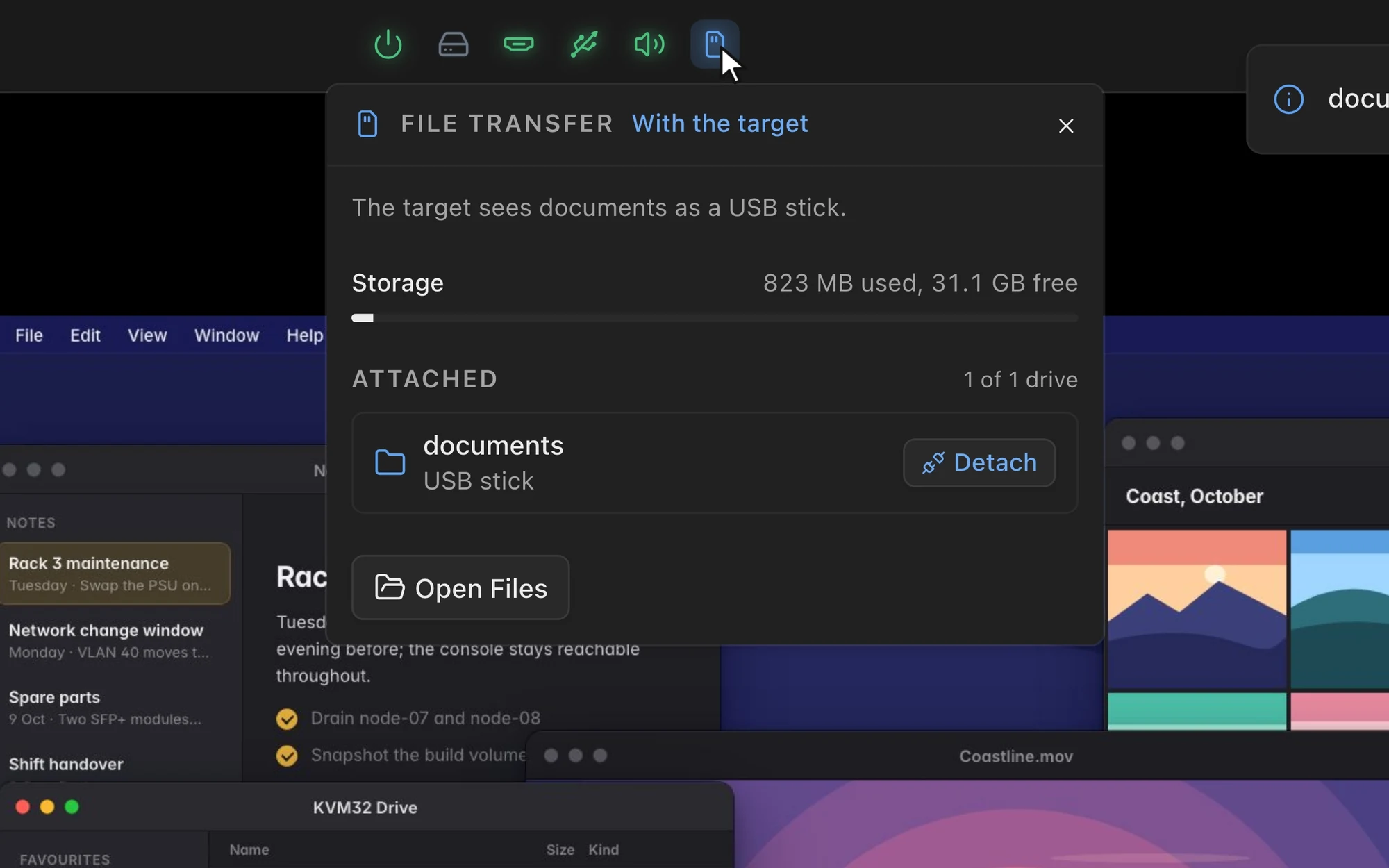
Show the machine a USB drive that is really a folder on the board, or an ISO as a CD-ROM. Boot an installer, reinstall a lab PC, or copy files across.

  • A folder on the microSD card, shown as a USB stick the machine can read
  • An ISO image, shown as a CD-ROM, or another disk image as a removable disk
  • Boot an installer straight from your browser
  • Optional: off until you switch it on under Settings, Virtual media

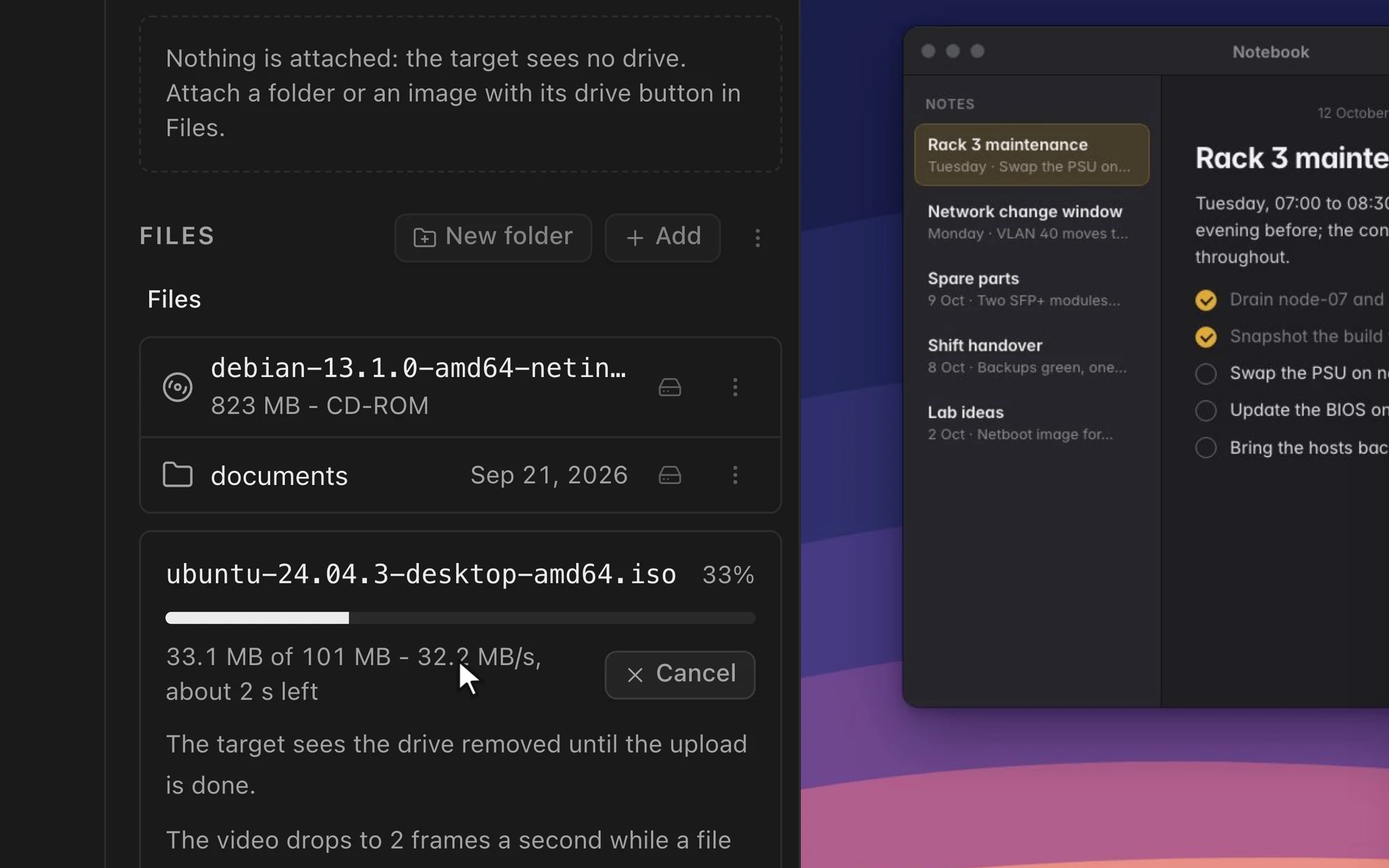
Upload files in the console and they land on the board's microSD card, ready for the machine. Delete what you no longer need.

  • Drop files and whole folders on the console to upload them
  • A file is written only while the drive is out of the machine's sight, so it never sees a half-written disk
  • The card is tested before its first write
  • File names in any language

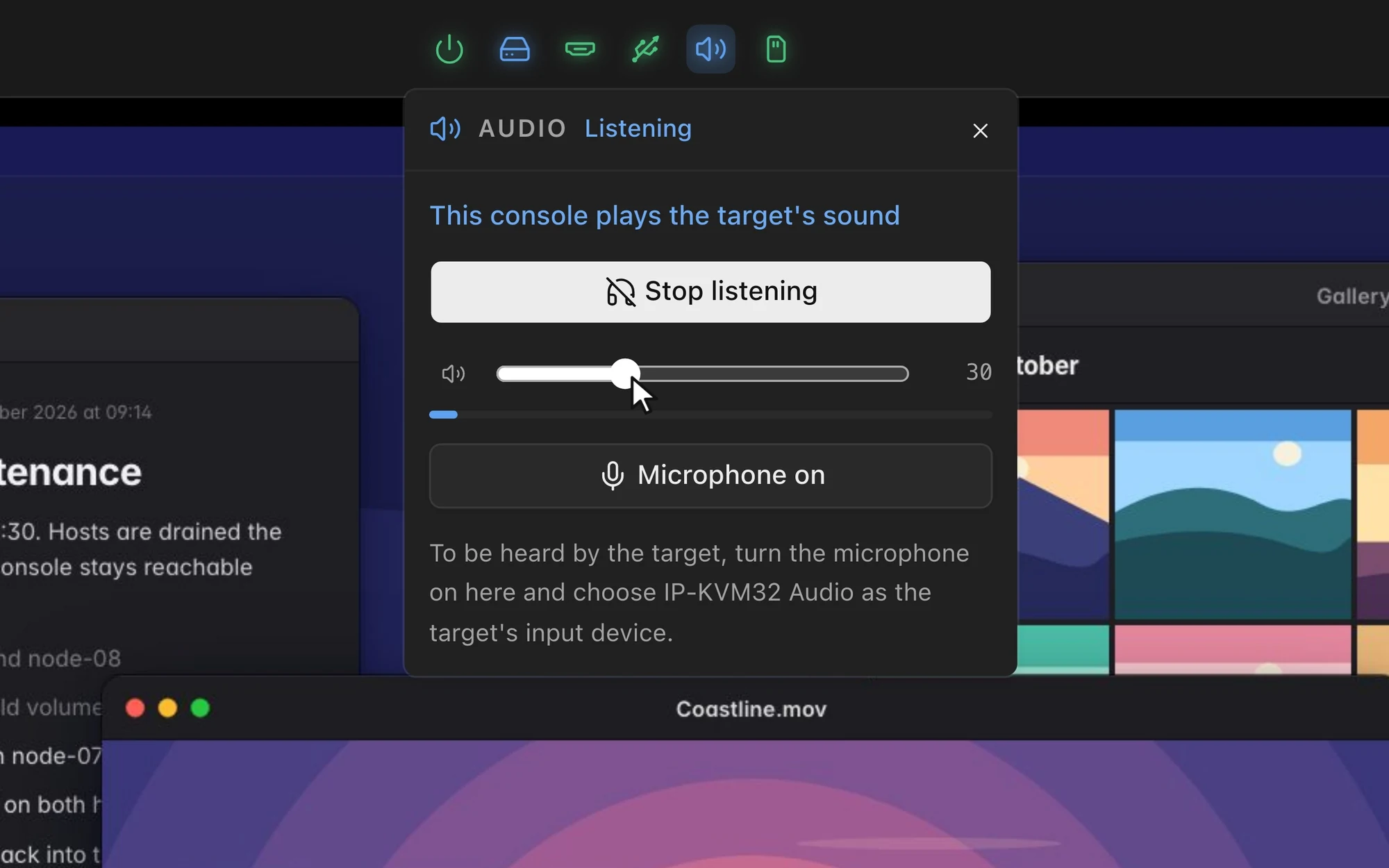
Hear what the machine plays, in your browser. Let it hear your microphone.

  • The machine sees a USB headset, so sound travels over the same cable
  • No audio wiring, and no HDMI audio needed
  • The machine is told its HDMI has no sound, so it plays to the headset
  • Sound out and microphone in, in the console
  • Not in the simple USB modes, which have no room for a headset

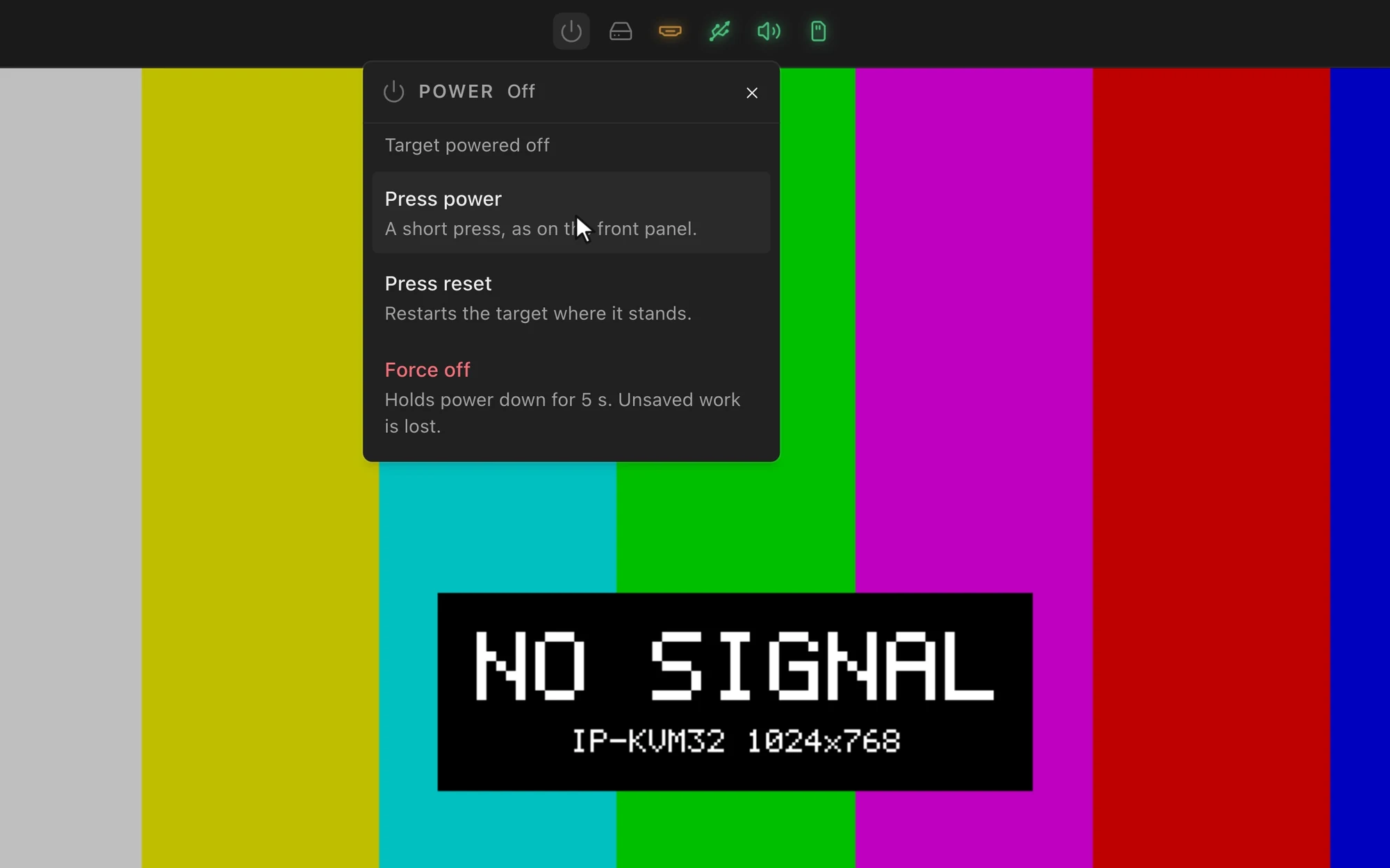
Press the machine's power and reset buttons from the console, and watch its power and disk lights. It works when the machine is off.

  • Power on, power off (held for a hard off) and reset
  • The machine's power and disk lights, shown in the console
  • Wired through optocouplers to the front-panel header, so the two stay electrically apart
  • Optional: off until you switch it on under Settings, Power and connect the ATX leads

Run it

Updates, logs, networking and an API, for one device or many.

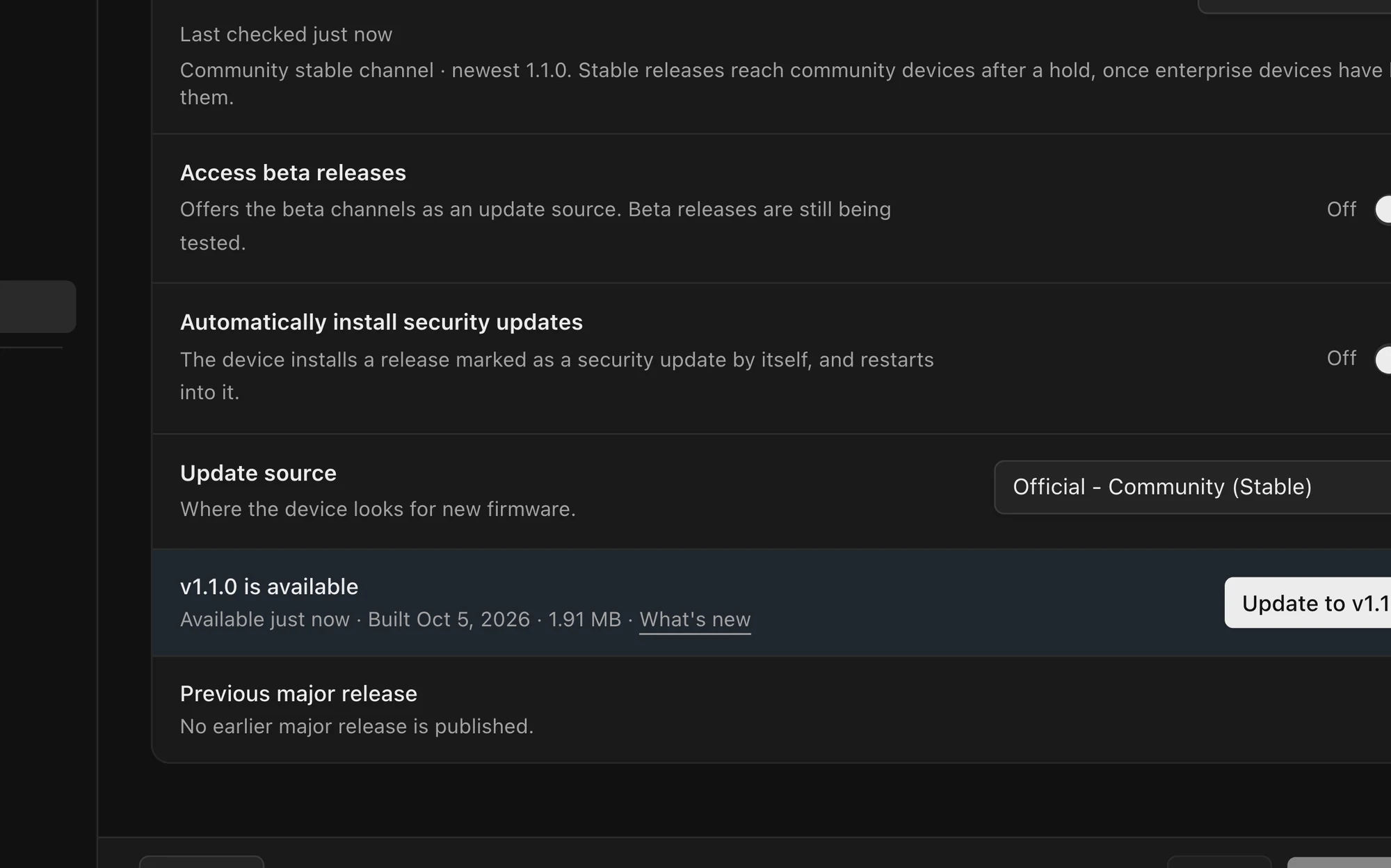
Check for a new version, read what is new, and install it when you choose, or upload a firmware file. If the new version does not come up, the board goes back to the old one.

  • Nothing installs until an administrator chooses it, except security updates if you turn them on
  • Releases are signed and checked before they install
  • Follow a beta channel to try changes early
  • Each release reaches you 14 days before the Community channel gets it Enterprise
  • Install firmware you built yourself, use an update server of your own, or follow the internal beta builds Enterprise

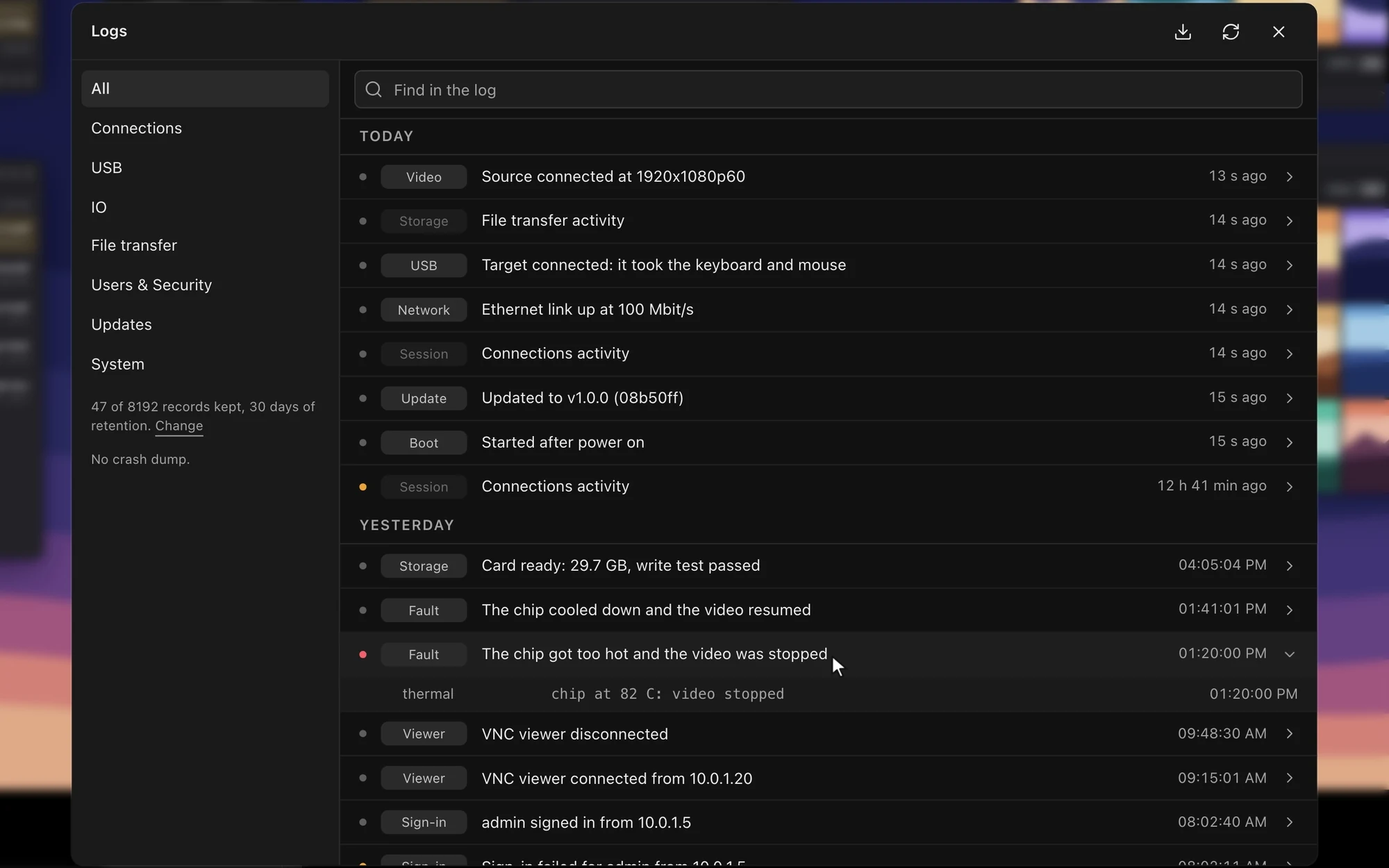
A log of what happened on the device, each line in plain words: sign-ins, changes, uploads, updates and faults. Beside it, the System panel shows how the device is doing: CPU, temperature and memory open into graphs of their last minutes.

  • Kept in the board's flash, so it survives restarts and firmware updates
  • Sorted by topic, newest first, and exported as a text file
  • Holds the latest 8192 lines, and hides those older than the days you set
  • A sample of CPU, temperature and memory every ten seconds, about four days of it, behind the graphs
  • The crash dump of a fault can be downloaded

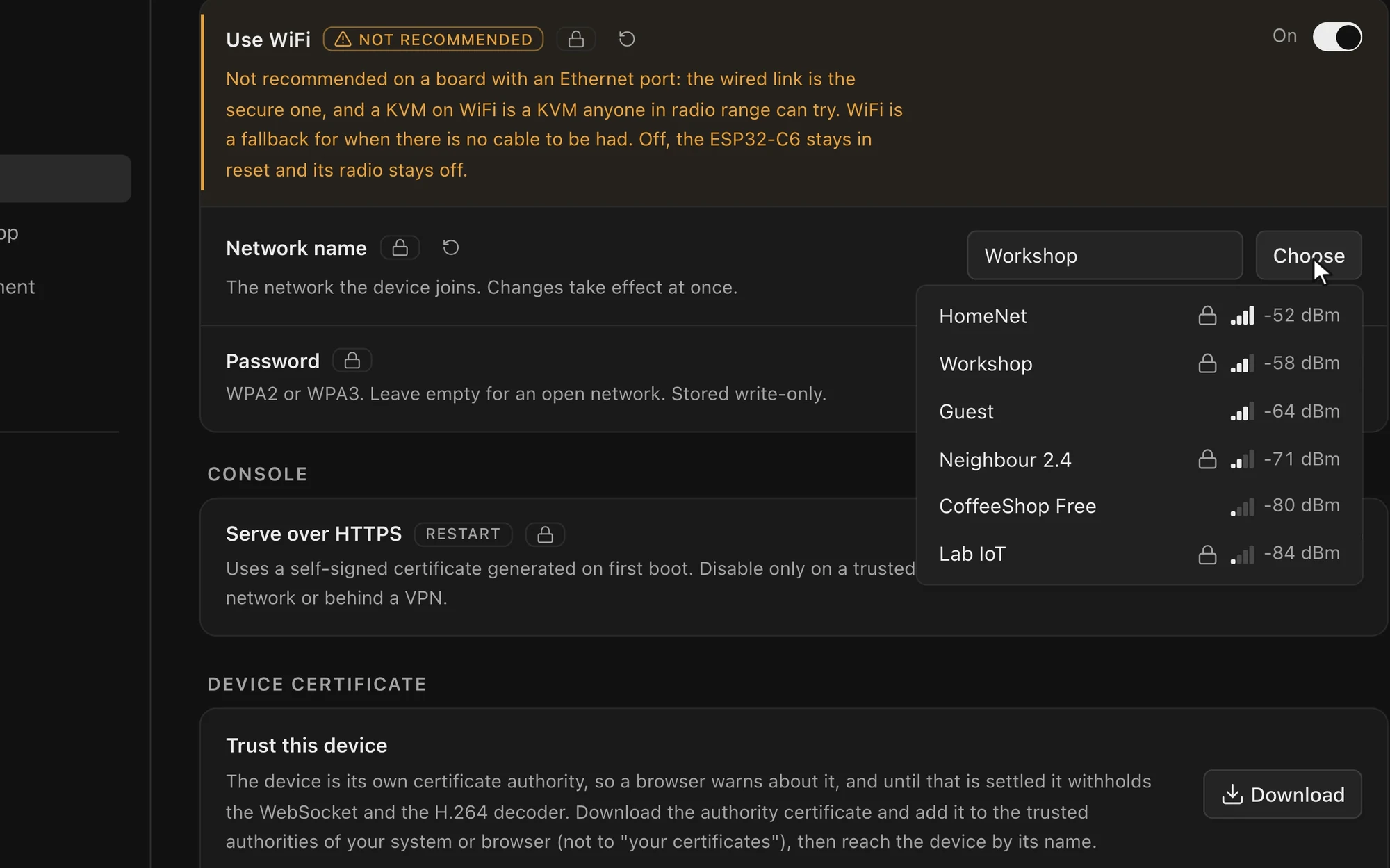
Ethernet with PoE is the link: one cable carries power and data. WiFi, through the board's second chip, is a fallback for where there is no Ethernet.

  • PoE powers the board from the network cable
  • DHCP or a fixed address, on IPv4
  • WiFi is off by default where the board has an Ethernet port, and marked not recommended
  • An open set-up network named IP-KVM32 until you set a password
  • Reach it as ip-kvm32.local, or by its address, and give each device its own name
Terminal
# Read the device
curl --cacert ip-kvm32-ca.crt \
  -H "Authorization: Bearer ipk_<your key>" \
  https://ip-kvm32.local/api/v1/system/info

# Select server 3 on a KVM switch: types the switch's hotkey
curl --cacert ip-kvm32-ca.crt -X POST \
  -H "Authorization: Bearer ipk_<your key>" \
  -H "Content-Type: application/json" \
  -d '{"port": 3}' \
  https://ip-kvm32.local/api/v1/kvm/select

# Save a still of the screen
curl --cacert ip-kvm32-ca.crt -o screen.jpg \
  -H "Authorization: Bearer ipk_<your key>" \
  https://ip-kvm32.local/api/v1/video/frame.jpg

Everything the console does is a request to the device, and your scripts can send them too. Use an API key as a bearer token.

  • It runs on the device, on your own network
  • Keys with a role, administrator or user, made and revoked in the console
  • A still of the screen as a JPEG
  • Pick a server on a KVM switch, press power, restart, read the log

Enterprise

Accounts and API keys in every edition. Directory sign-in and licences for teams.

The device has a local administrator account, which you can rename and give a new password. API keys let scripts and tools in, each as an administrator or as a user.

  • Administrators change the device; users operate the screen, keyboard, mouse and virtual media
  • API keys for scripts: shown once, up to eight, revoked in the console
  • See who is signed in, and end any session but your own
  • Sign-ins end after an idle time you set, and repeated wrong ones hold that address back for a while

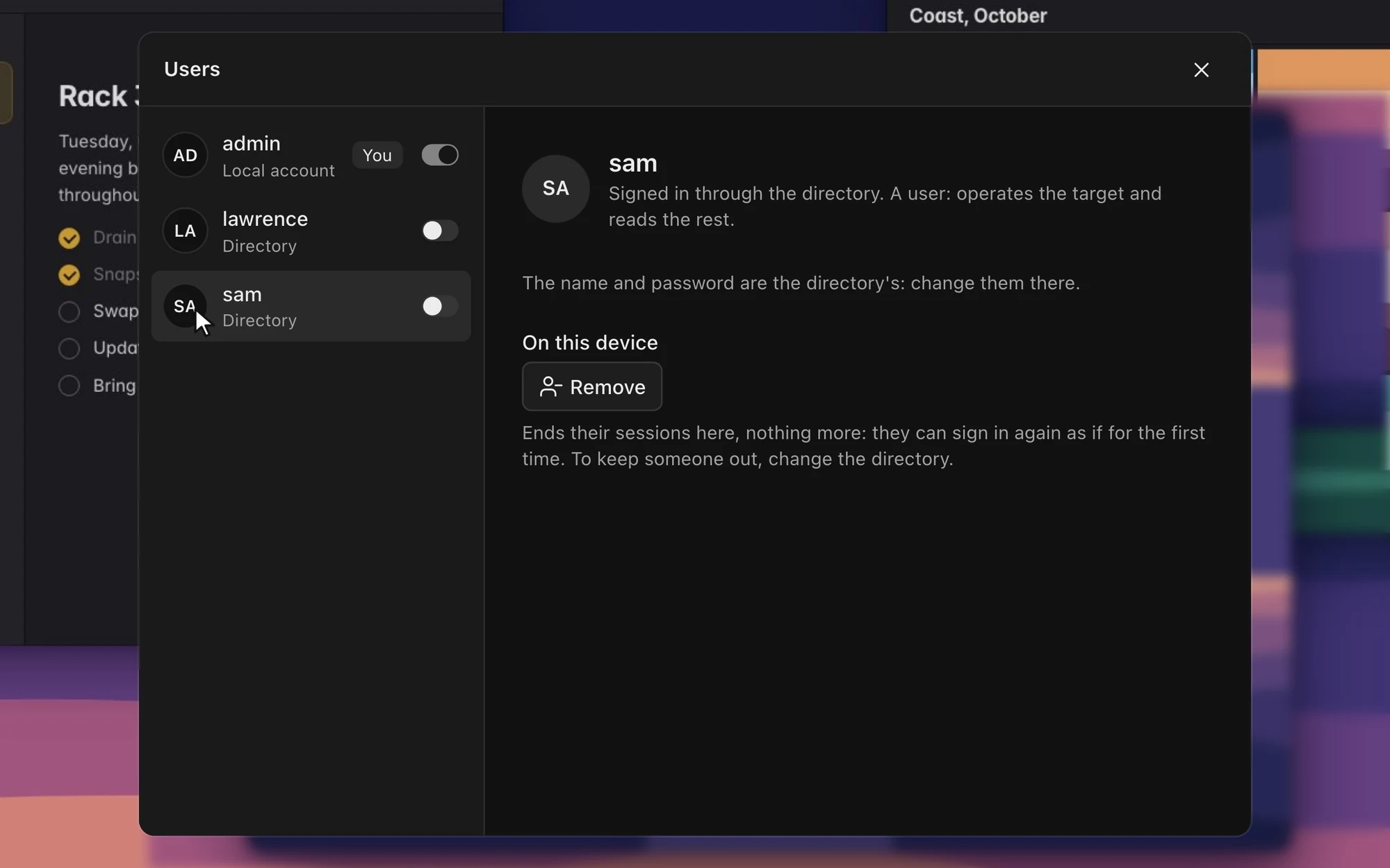
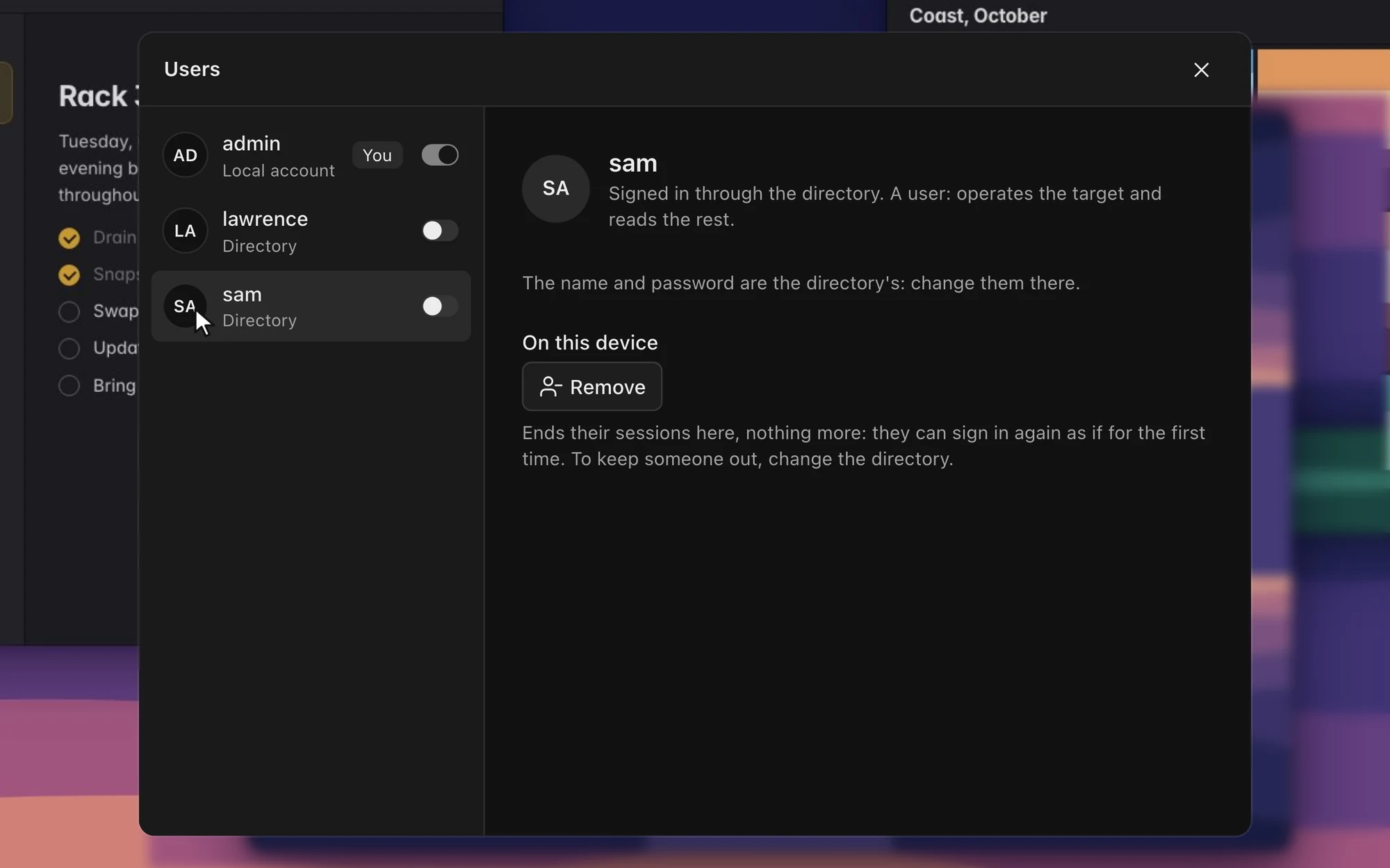
People sign in with the accounts they already have, from your LDAP directory. The same sign-in works on every device you point at it.

  • A name and password the local account does not know are checked against your LDAP server
  • LDAP or LDAPS, with your own CA certificate if you have one
  • A user DN pattern, and an optional administrator DN: whoever binds with it is an administrator
  • Directory users who sign in are listed; an administrator can make one an administrator or remove them
  • The device keeps no directory password, and the local account keeps working when the directory is down

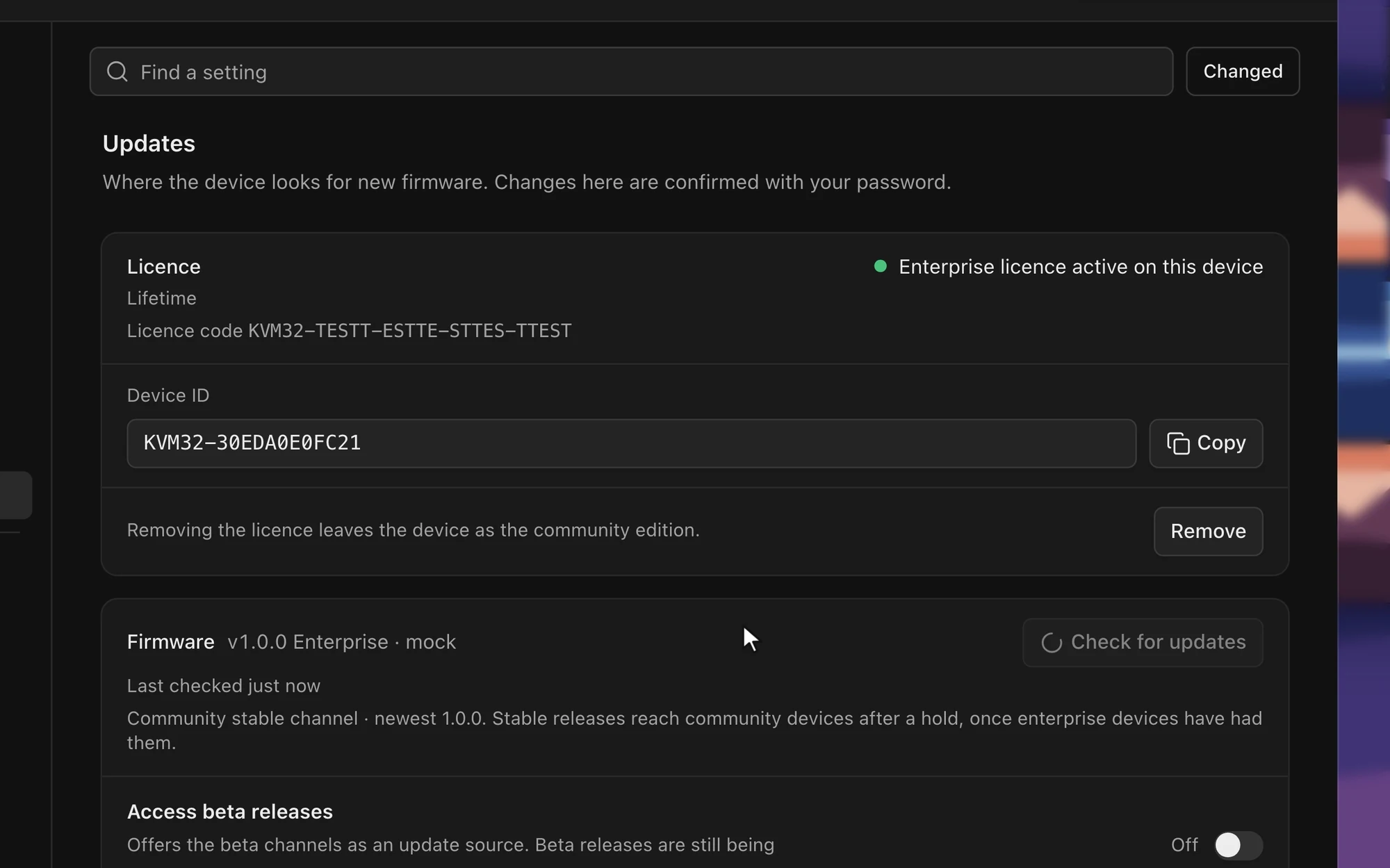
Enterprise is a code for each device. Paste it in the console, or give it to the setup command.

  • Pay once per device, or by the month or year
  • A free 14-day trial, once per device
  • Activate in the console under Settings, Updates, or with kvm32 provision --licence
  • When a trial or plan ends the device reminds you, then goes back to Community after 14 days and keeps its settings
  • Community is free for personal use; a business needs Enterprise